
Posted on

USB initialization issue at boot

The fact that unplugging and re‑plugging the USB Wi‑Fi adapter and printer makes them work suggests Windows isn’t properly recognizing them during startup. Here are some practical steps you can try:

Got it — thanks for explaining clearly. What you’re describing sounds like a USB initialization issue at boot. The fact that unplugging and re‑plugging the USB Wi‑Fi adapter and printer makes them work suggests Windows isn’t properly recognizing them during startup. Here are some practical steps you can try:


🔧 Troubleshooting Suggestions

1. Power Management Settings

  • Go to Device Manager → Network Adapters → your USB Wi‑Fi adapter → Properties → Power Management tab.
  • Uncheck “Allow the computer to turn off this device to save power.”
  • Do the same for the printer’s USB entry under Universal Serial Bus controllers.

2. Update Drivers

  • Download the latest drivers for your USB Wi‑Fi adapter and printer directly from the manufacturer’s website (not just Windows Update).
  • Outdated drivers often cause detection issues after reboot.

3. Change USB Port

  • Try plugging the Wi‑Fi adapter into a rear USB port (directly on the motherboard) instead of the front panel. Rear ports usually initialize earlier and more reliably.

4. BIOS/UEFI Settings

  • Enter BIOS (press F2 or DEL during boot on Dell).
  • Look for USB Configuration or Legacy USB Support and ensure it’s enabled.
  • Also check for Fast Boot — sometimes disabling it helps USB devices initialize properly.

5. Startup Delay

  • Some users fix this by adding a powered USB hub. It stabilizes power delivery and ensures devices are ready when Windows boots.

6. Windows Fast Startup

  • Go to Control Panel → Power Options → Choose what the power buttons do → Turn off Fast Startup.
  • Fast Startup can skip proper USB initialization.

🖨️ Printer-Specific Tip

If the printer is USB‑connected, try installing it as a network printer (via Wi‑Fi or Ethernet) instead. That way, it doesn’t rely on USB detection at boot.

 

Posted on

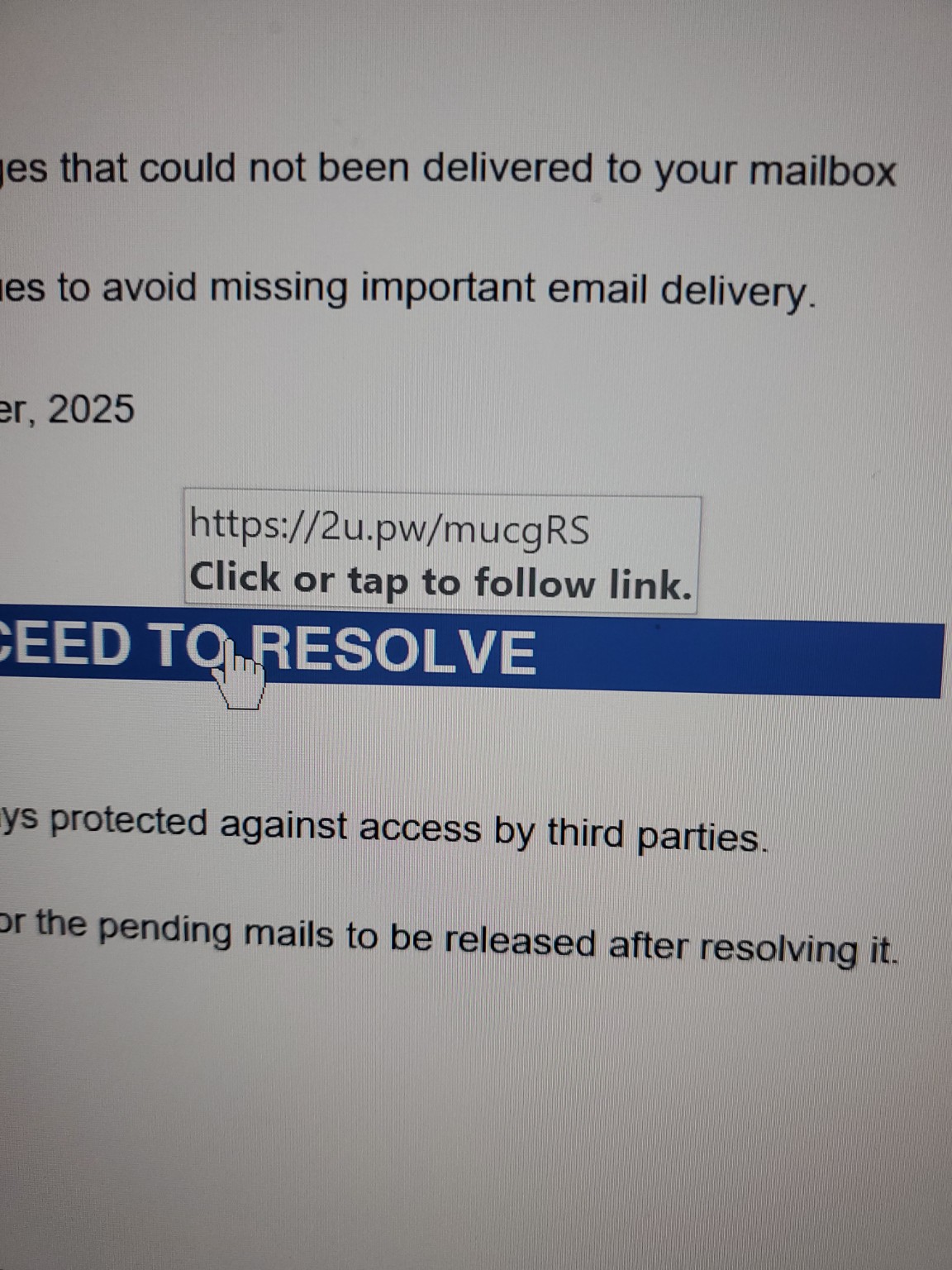
This is a phishing scam. Do NOT click that link.

This is a phishing scam.
Do NOT click that link.


Why it’s a scam

  • The link uses a URL shortener (2u.pw) — very commonly used in phishing.

  • The email claims there are “messages that could not be delivered”, which is a common trick to make you panic.

  • They want you to “proceed to resolve” — usually this leads to a fake login page to steal your email password.

What to do now

  1. Do not click the link.

  2. Delete the email.

  3. If you already clicked and entered your password — change your email password immediately.

  4. If this email came to a work account — inform IT.

Posted on

Dahua NVR/XVR Phone setting

  1. Download app in the phone From  https://dahuawiki.com/Main_Page

Ref. Link   https://dahuawiki.com/DMSS     //PC  https://dahuawiki.com/SmartPSS

Dmss   New App  for both Galaxy phone, and Iphone

DMSS  Android    /    DMSS iOS

  1. Step by Step Instructions DMSS / Have to Setup Account First
  2. Open DMSS Android/DMSS iOS on the phone, and select the home icon located on the top left corner.
  3. Select the “Device” button/icon on the bottom to add the recorder/camera.
  4. Select the “+” sign right on the top, then select “Scan”, “Manually” to add the device
  5. Select the “NVR/XVR”. And select DVR/XVR
  6. Input the device for easy identification. It’s required to input the password for the added device then select the save icon located on the top right corner.
  7. Input the SN by Manual sn:  ************
  8. USER NAME admin    PW  ????
Posted on

Discontinuation of iDMSS and gDMSSNeed to change phone app. To DMSS

https://dahuawiki.com/Discontinuation_of_iDMSS_and_gDMSS

Discontinuation of iDMSS and gDMSS.  Need to change the phone app. To DMSS

Download DMSS from app store and add your device.

https://dahuawiki.com

DMSS About DMSS

Watch from your computer.

Download SmartPSS_Lite, and Install.

https://dahuawiki.com/SmartPSS_Lite

CCTV 전화프로그램 안내.

idmss 와 gdmss 전화 앱 프로그램이 중단되었습니다.

새로운 통합프로그램  dmss app을 전화기에 설치해야 합니다.  

Computer 에서 보는 방법.  SmartPSS_Lite 을 Download 후 설치하세요.

https://dahuawiki.com/SmartPSS_Lite


Posted on

End of support for Windows 10, Windows 8.1, and Windows 7

End of support for Windows 10, Windows 8.1, and Windows 7

End of support for Windows 10, Windows 8.1, and Windows 7 | Microsoft Windows

Support for Windows 10 will end in October 14, 2025

After October 14, 2025, Microsoft will no longer provide security updates or technical support for Windows 10.  Your PC will still work, but we recommend moving to Window 11.

Posted on

Less secure apps & your Google Account

Less secure apps & your Google Account

To help keep your account secure, from May 30, 2022, ​​Google no longer supports the use of third-party apps or devices which ask you to sign in to your Google Account using only your username and password.

Important: This deadline does not apply to Google Workspace or Google Cloud Identity customers. The enforcement date for these customers will be announced on the Workspace blog at a later date.

For more information, continue to read.